If you install a menu bar manager on macOS, there's a good chance the first thing it does is ask to record your screen. It feels invasive — all you wanted was to tidy up a row of icons, and now an app wants to watch everything you do. So I put the question to the test: do these apps actually need screen recording to manage your menu bar?
I installed five of the most popular managers — Ice, Bartender 6, Thaw, Barbee, and Hidden Bar — on macOS 27 "Golden Gate" and walked through each one's onboarding, watching exactly which permissions it demanded, and then the most basic test of all: could it actually hide a menu bar item?
TL;DR: Four of the five ask for Screen Recording, but it is not required to hide, reveal, or reorder menu bar items — that job runs entirely on the Accessibility permission, and two apps even admit as much in their own UI. But the bigger surprise came after I granted the permissions: none of the five could reliably hide menu bar items on macOS 27 in my testing. They demand your screen and fall short at the one job you installed them for. Lounge is built the other way around — Accessibility only, no screen recording, no indicator — and it hid items cleanly on macOS 27.
What Screen Recording is actually for
macOS treats the menu bar as system-owned. To reposition an item — move it, hide it, or reveal it — an app needs the Accessibility permission, which is how macOS lets any app control UI elements it doesn't own. That's the whole mechanism behind every menu bar manager, and it's the same permission our Lounge vs Bartender comparison points out both apps rely on.
So what is Screen Recording for? Cosmetic extras:
- Live previews of a hidden icon while you hover over it.
- Capturing icon images so the app can show or search them in its own panel.
- Sampling the menu bar's colors to tint or style itself.
Every one of those is a nice-to-have. None of them is required to actually clean up your menu bar. Keep that distinction in mind as we go through the results, because the apps themselves keep blurring it.
The test: who asks for what — and who actually worked
Here's what each app demanded during onboarding on macOS 27, and, crucially, whether it could hide a menu bar item once I'd granted everything it wanted:
| App | Screen Recording prompt | Hid items on macOS 27 | Extra setup hoops |
|---|---|---|---|
| Ice | Yes | No | — |
| Bartender 6 | Yes | No | Layout gated behind recording |
| Thaw | Yes | No | Ugly layout, constant recording indicator |
| Barbee | Yes | No | Helper + Automation, stalls loading |
| Hidden Bar | No | No | Bare toggle, nothing else |
| Lounge | No | Yes | Accessibility only |
The pattern is hard to miss on two levels. First, four of the five competitors prompt for screen recording, even though every one of them relies on the same Accessibility permission to do the real work. Second — and this is the part that surprised me — not one of them actually hid menu bar items on macOS 27. The sections below go app by app.
Ice
Ice throws the standard macOS screen-recording dialog the moment you start setting it up.
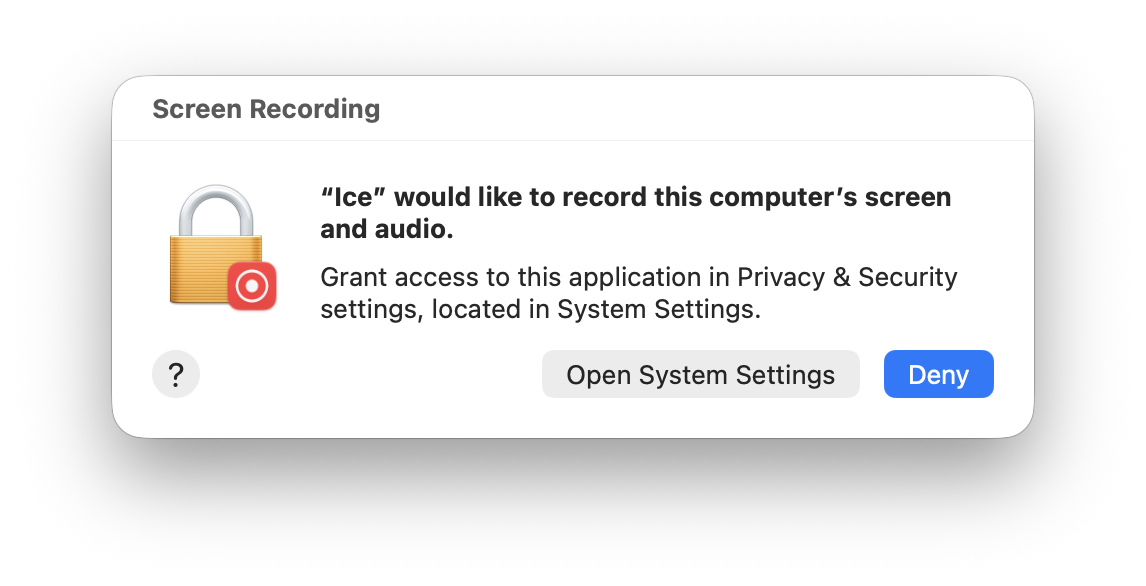
Ice, Bartender, Thaw, and Barbee all fire this same system prompt — "would like to record this computer's screen and audio."
But look closely at Ice's own permissions screen and it quietly gives the game away. Under Screen Recording it notes that "Ice can work in a limited mode without this permission."
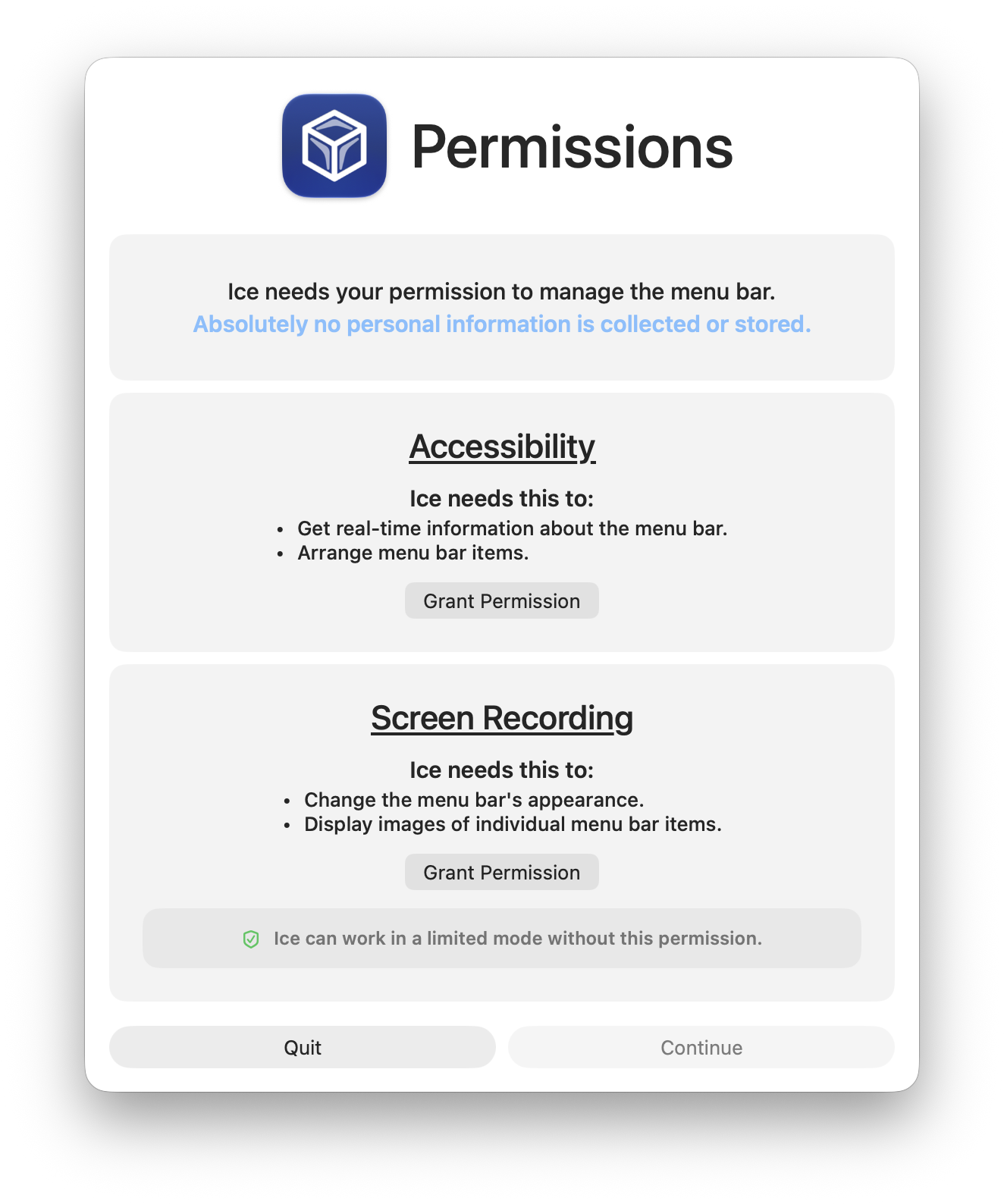
Ice admits screen recording is optional — Accessibility is what does the actual menu bar work.
Credit where due: Ice is free and open source. But leading with a permission it openly concedes you don't strictly need would sting less if the core feature worked — and in my testing on macOS 27, Ice couldn't actually hide my menu bar items. I granted everything it asked for, and the icons stayed put.
Bartender 6
Bartender is the most established paid manager, and it asks for the most upfront. Its onboarding presents Screen Recording and Accessibility side by side as if both are mandatory before you can "Clean up your Bar."
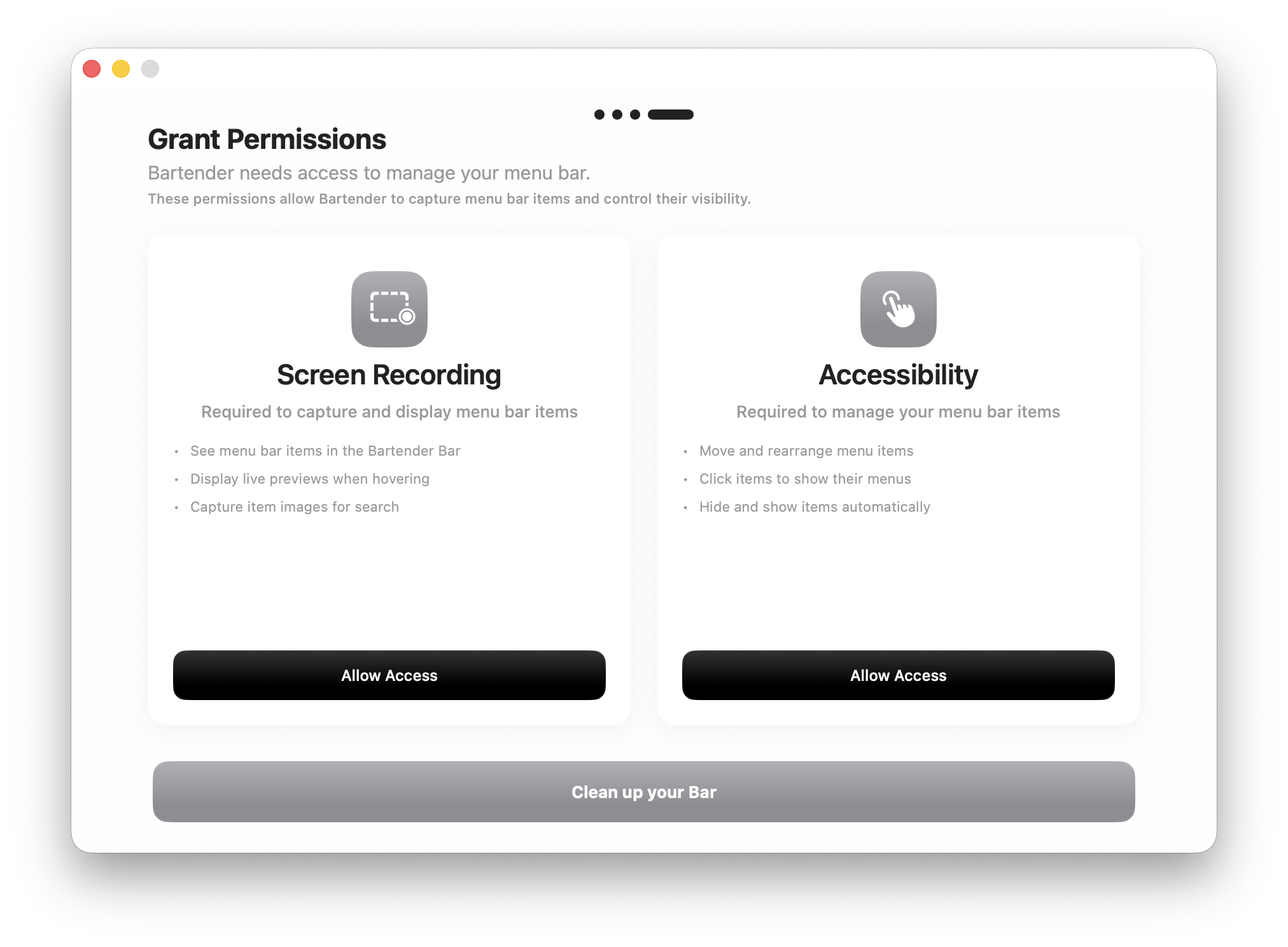
Bartender 6 presents Screen Recording as a co-requirement to Accessibility during setup.
And Bartender genuinely leans on it. Turn screen recording off and its Layout editor becomes unusable, showing a "Screen Recording Disabled — you cannot interact with the Bartender Layout preferences" wall. So even though the core repositioning runs on Accessibility, Bartender gates a big chunk of its interface behind the recording permission.
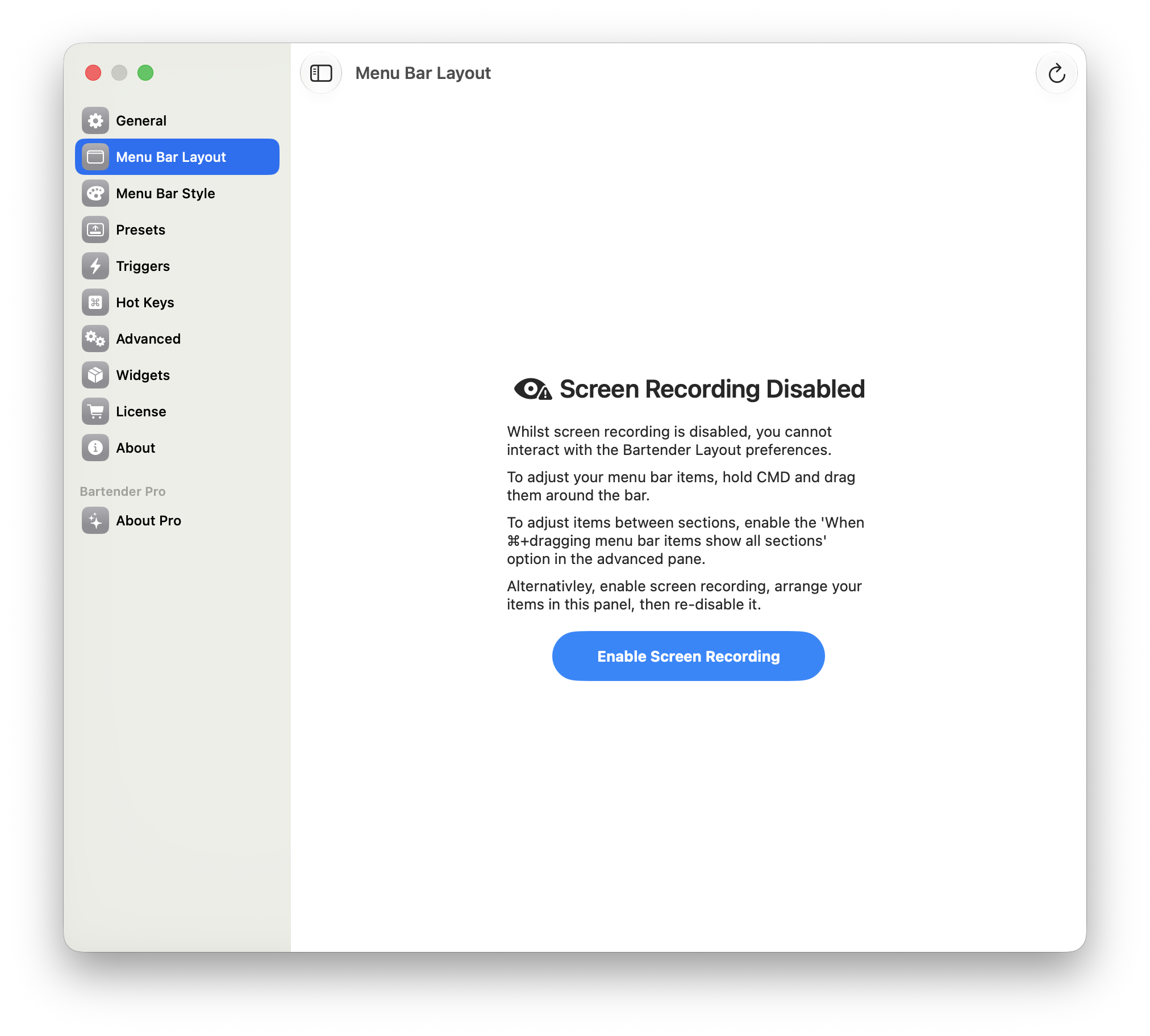
With screen recording off, Bartender's Layout editor refuses to work.
It doesn't stop at recording, either — Bartender also fires a separate prompt to control your computer via Accessibility, so you're handing over two of the most powerful permissions macOS has before you've hidden a single icon.
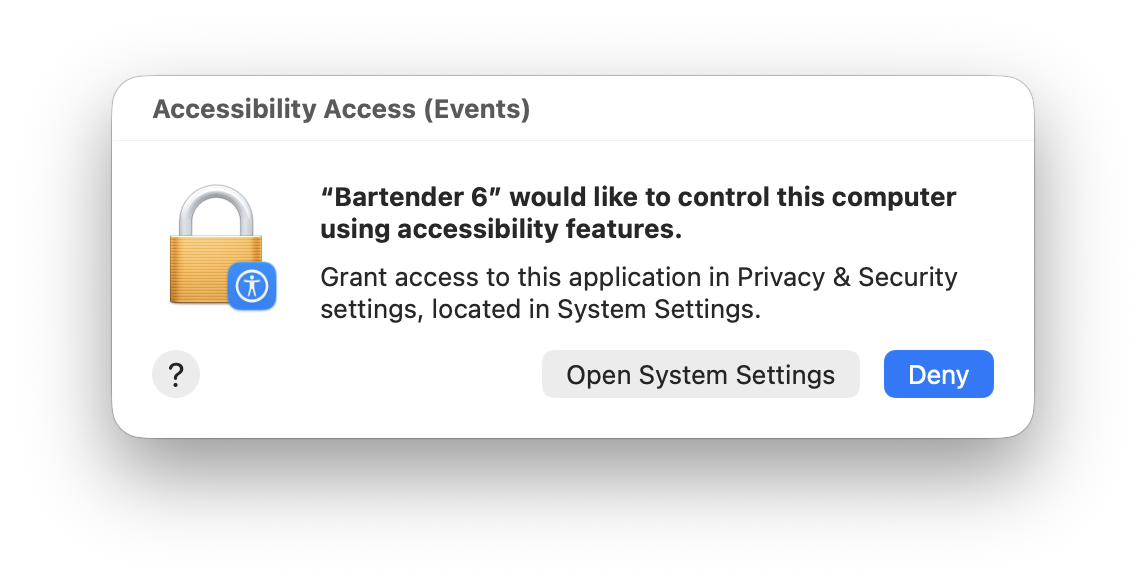
Bartender 6 also asks to "control this computer using accessibility features."
And after all that? On macOS 27, Bartender couldn't hide my menu bar items either. With both permissions granted, the layout tools were available but the actual hiding didn't take. If you want the deepest rule engine on the platform in general, see our full Lounge vs Bartender breakdown — but on this OS, the core function didn't deliver.
Thaw
Thaw is the honest one, and it's the reason I'm confident about the whole premise. It's open source (GPL), and its permission screen flat-out labels Screen Recording as "Optional," while marking Accessibility as required to continue.
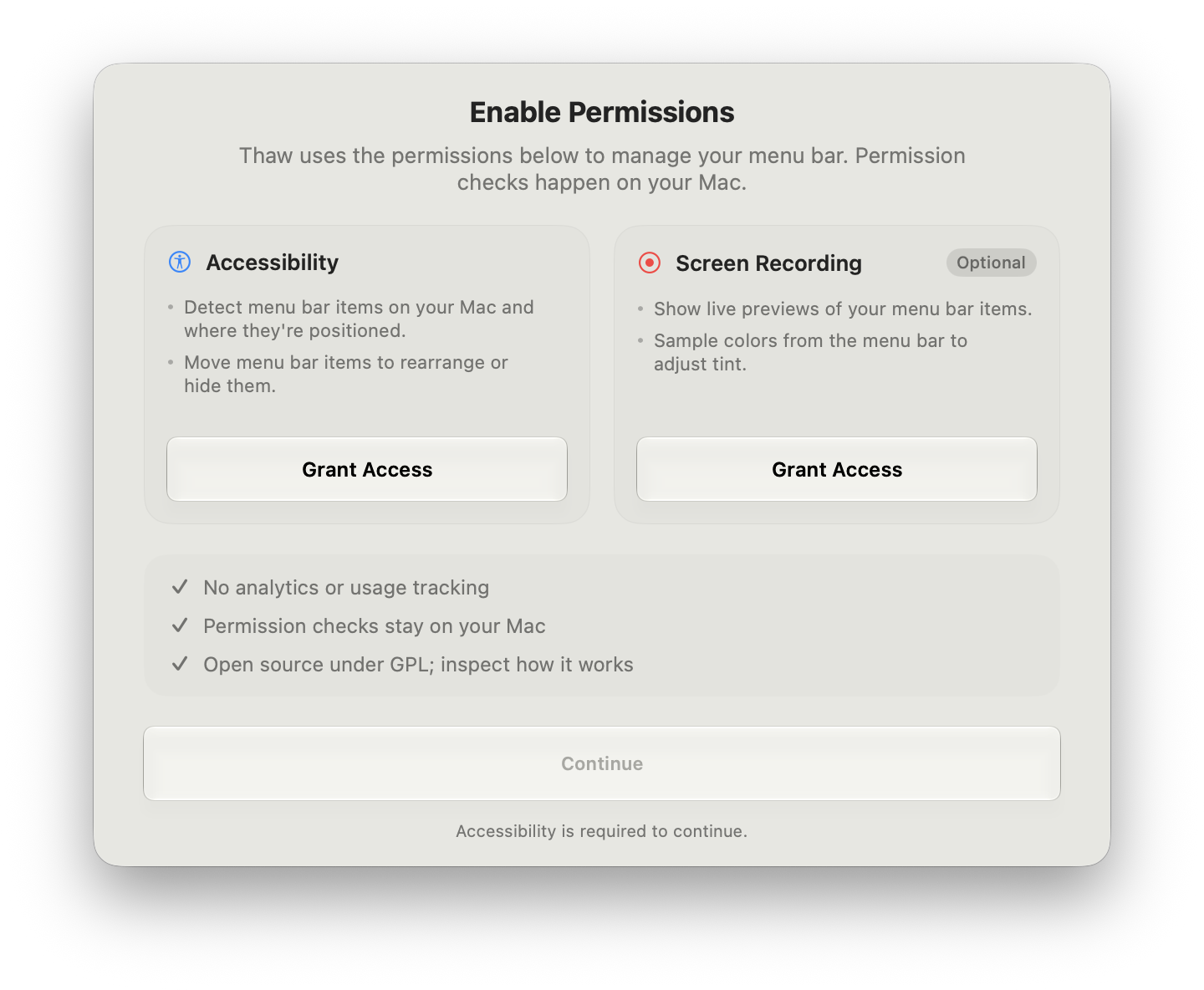
Thaw says it plainly: Accessibility is required, Screen Recording is Optional.
That's the entire argument in one screenshot. A menu bar manager can tell you, truthfully, that screen recording is optional — because it is.
The irony is that Thaw is the app where granting screen recording helped the least. Even after I gave it every permission, it couldn't capture the styles of my menu bar items, so its Layout editor rendered them as generic placeholder tiles instead of the real icons — an ugly, hard-to-use arrangement.
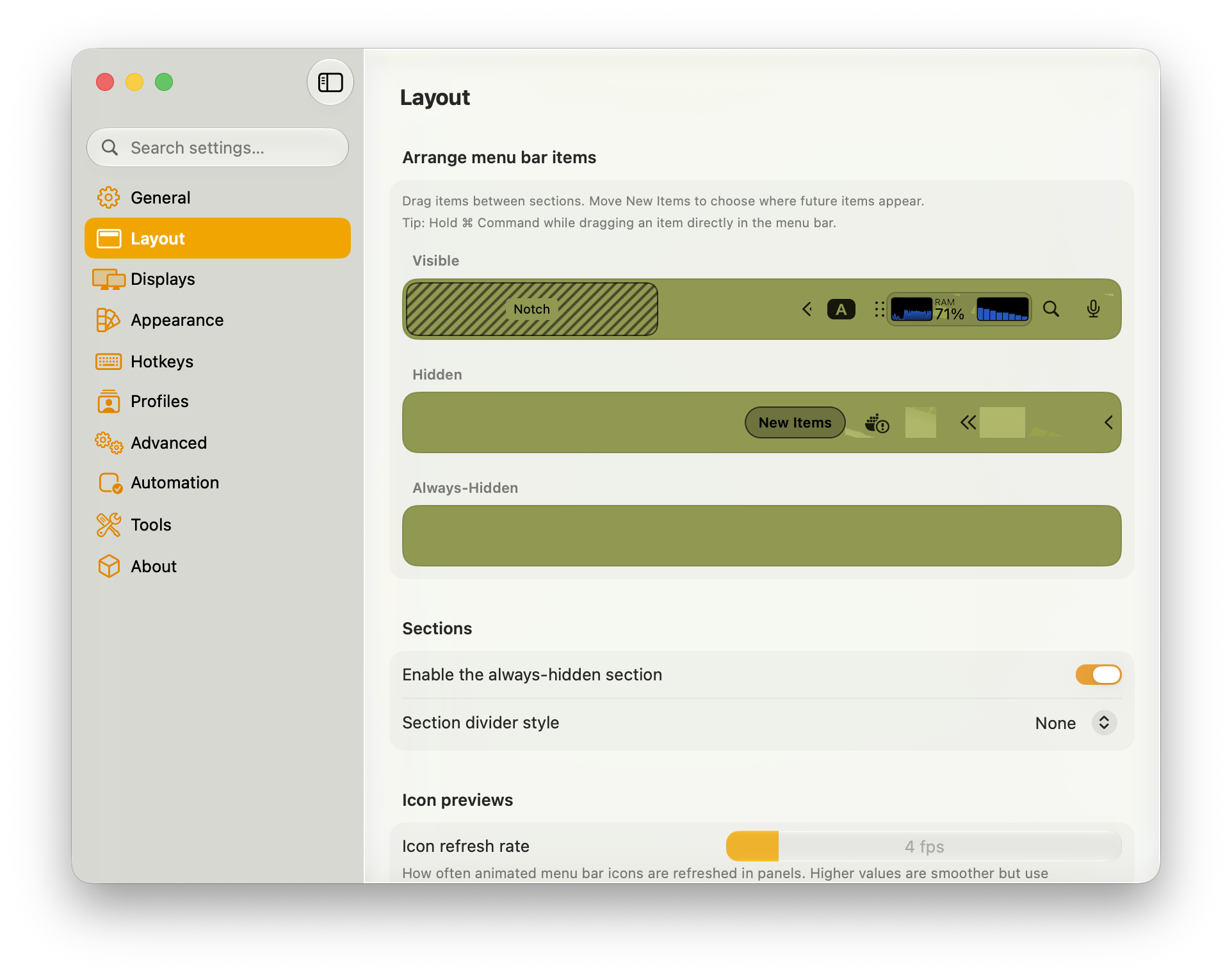
With every permission granted, Thaw still couldn't capture item styles — the layout is a row of blank tiles.
Worse, granting screen recording meant Thaw kept re-triggering the macOS recording indicator over and over while I used it — the exact nagging behavior the permission is supposed to make you think twice about. And the menu bar itself frequently hung on "Loading menu bar items…" instead of settling.

Thaw repeatedly stalled on "Loading menu bar items…" on macOS 27.
The bottom line: for all its honesty about the permission, Thaw couldn't reliably hide my menu bar items on macOS 27 either.
Barbee
Barbee goes the opposite direction and asks for everything. Setup requires installing a separate Barbee Helper, plus Screen Recording, plus Accessibility — and then a further Automation prompt to control System Events via Apple Events.
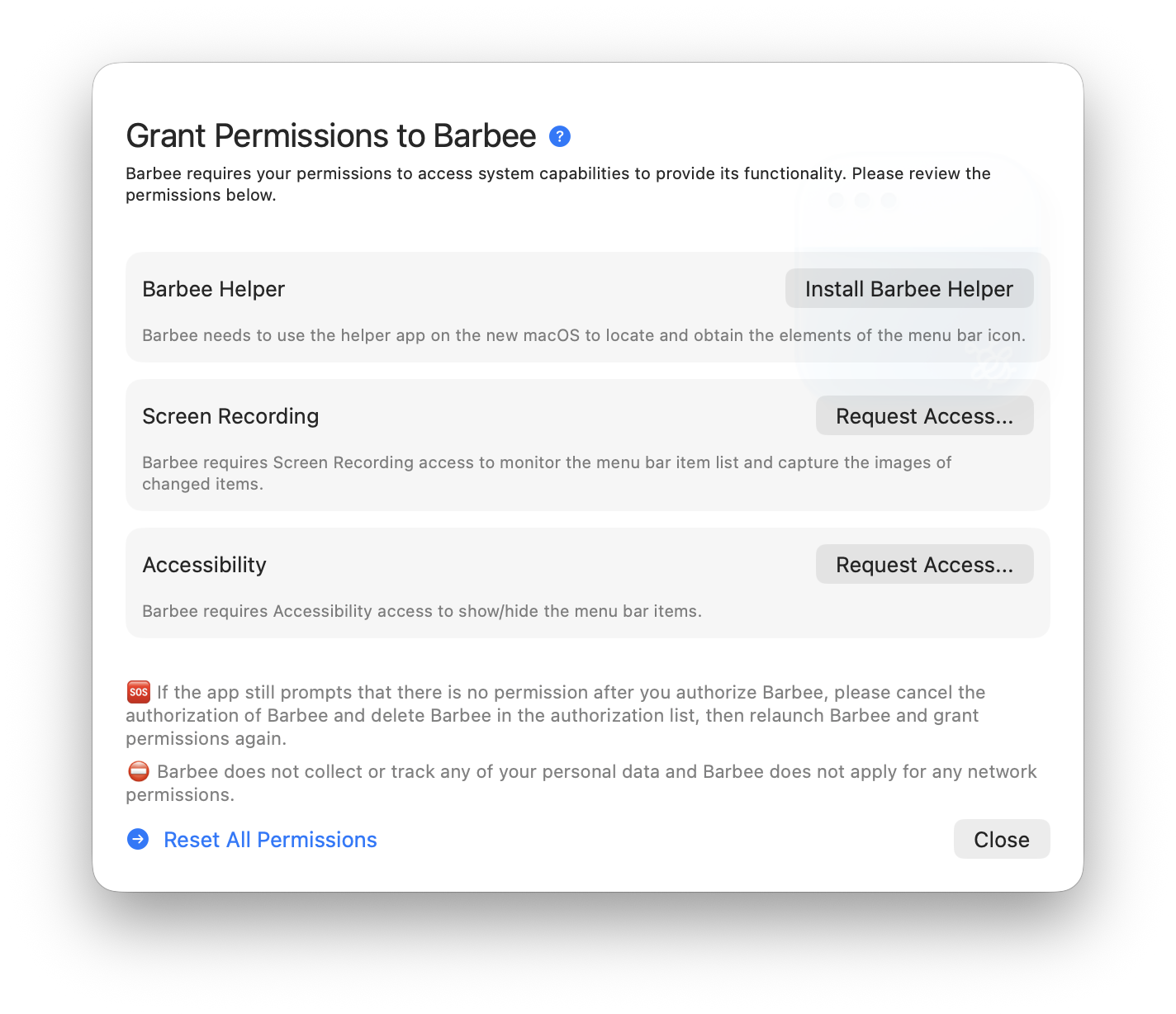
Barbee stacks a helper install on top of Screen Recording and Accessibility.
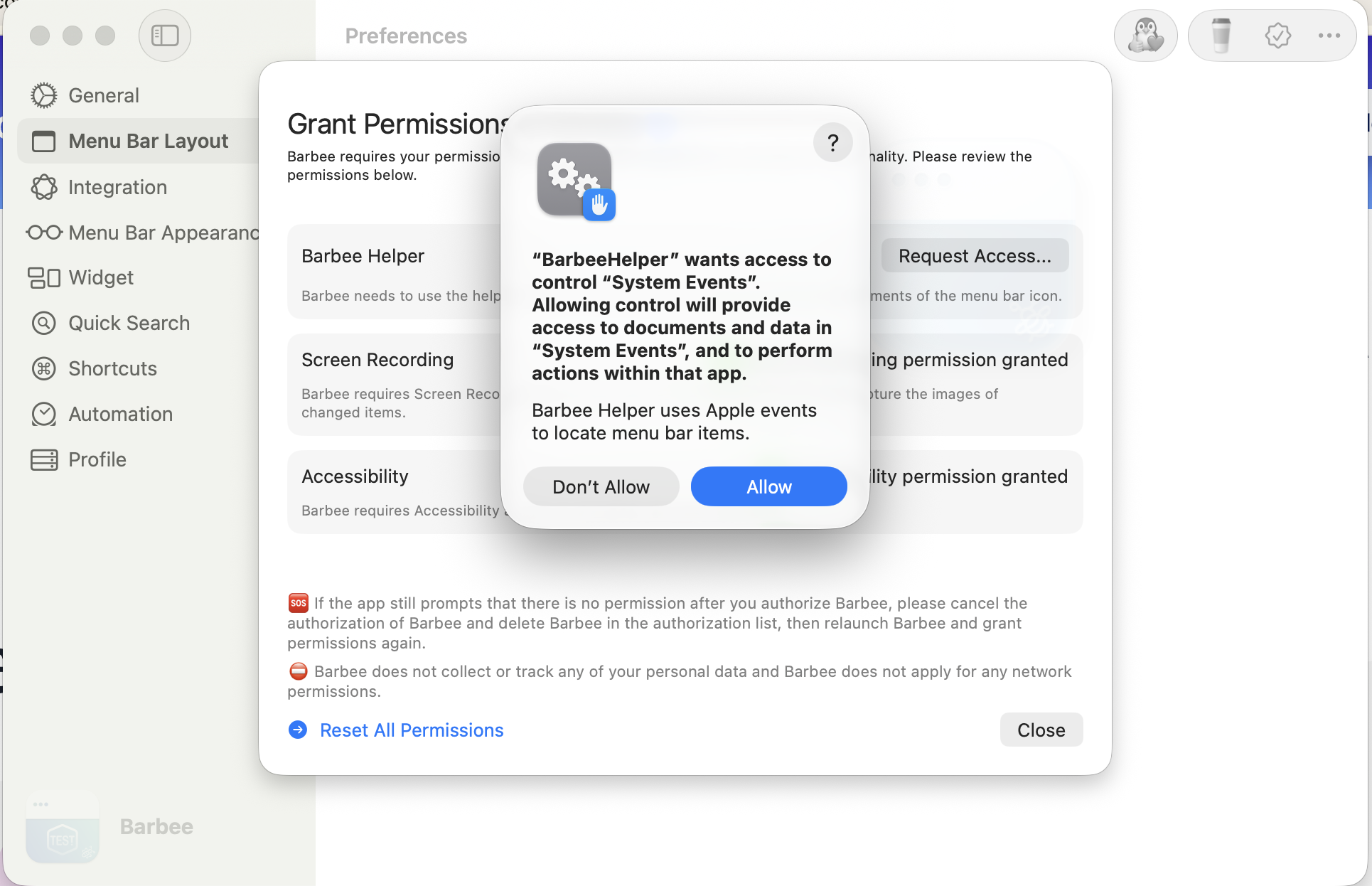
On top of that, the Barbee Helper asks for Automation access to control System Events.
That's four separate permission surfaces for a menu bar tool. And in exchange for all of it, Barbee was the one app that visibly struggled on macOS 27 — its menu bar panels kept hanging on "Just a moment, preparing…" and "Loading menu bar items…" instead of loading.

Observed in this test on macOS 27: Barbee repeatedly stalled on "Just a moment, preparing…"
I even confirmed the Barbee Helper was installed and reporting itself Active with every permission granted — and it still couldn't get through loading, let alone hide anything.
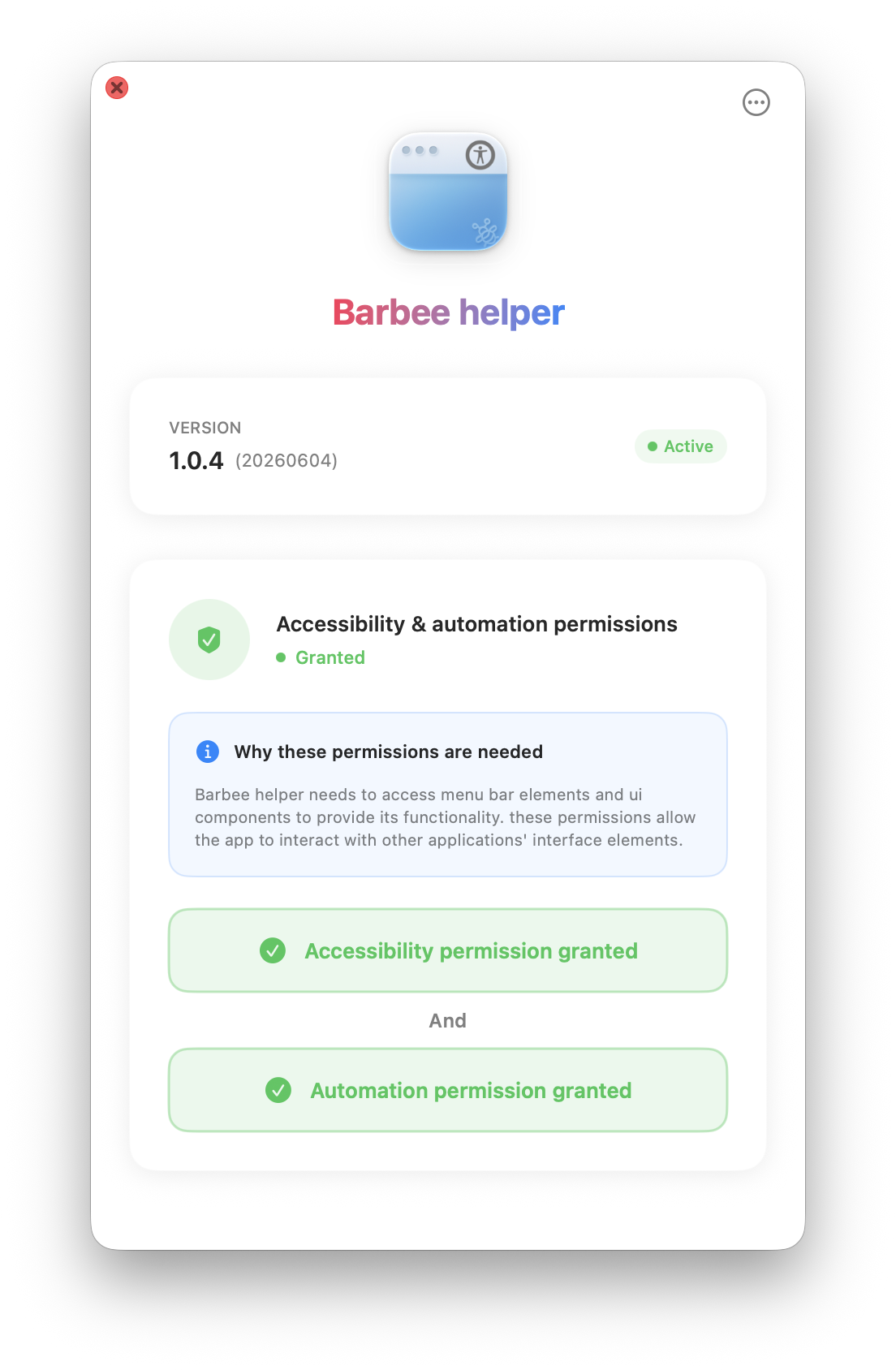
Helper installed, permissions granted, status "Active" — and Barbee still couldn't hide items on macOS 27.
To be fair, this is a snapshot of one app on a brand-new OS, not a permanent verdict. But it's the most permission of any app in the test, granted in full, in exchange for something that couldn't hide menu bar items on macOS 27 at all.
Hidden Bar
Hidden Bar deserves an honest mention because it gets the permission question right: it doesn't ask for screen recording at all — it only needs Accessibility. That's exactly the lean approach I'd want.
The catch is twofold. It's a bare toggle to begin with — one divider you click to show or hide overflow icons, with no notch-aware panel, no layout editor, no styling. And on macOS 27, even that stripped-down job failed: in my testing Hidden Bar couldn't hide my menu bar items either. So it's the honest counterpoint that proves the point from the other side — asking for less is the right instinct, but it still has to work on the current OS. We cover the app more fully in Lounge vs Hidden Bar.
So that's all five: every competitor I tested — whether it demanded screen recording or not — failed to reliably hide menu bar items on macOS 27. Which brings us to the two things that actually matter: the permission you're handing over, and whether the app does its job.
Why the recording indicator is the real annoyance
Here's the part that pushed me to write this up. The moment you grant screen recording, macOS shows a persistent recording indicator whenever the app is active. That indicator exists for a good reason — it's a privacy safeguard so you always know when something can see your screen.
But a menu bar manager never needs to see your screen content. It arranges icons. Leaving a screen-recording permission switched on — and the indicator lit — for a utility that only tidies your menu bar is exactly the kind of permission creep the indicator is meant to warn you about. It's a nagging visual reminder, and it's an attack surface you didn't need to open.
How Lounge does it
Lounge is designed around the opposite default. It asks for Accessibility and nothing else — no screen recording request, so no recording indicator, no helper app, no Automation prompt. The core job, hiding and revealing and reordering your icons, is exactly what Accessibility exists for, so that's all Lounge takes — and, unlike every app above, it actually does that job on macOS 27.
Here's what that looks like. Hover near the notch and Lounge reveals a clean panel of every hidden and visible icon in clear sections — real icons, captured correctly, with clipboard history built right in:
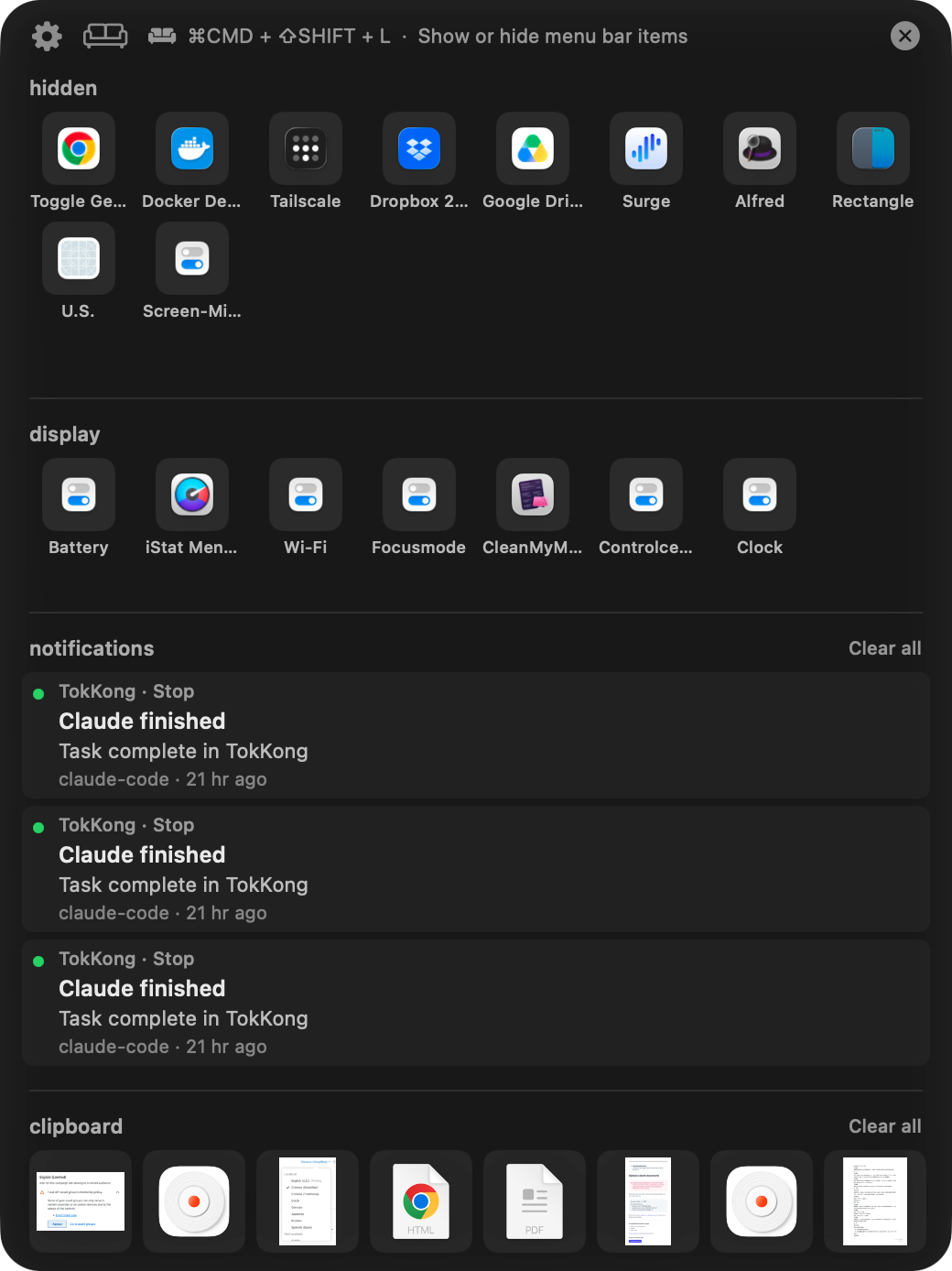
Lounge's notch-aware panel — hidden and visible icons in clear sections, no blank placeholder tiles.
Rearranging is a simple ⌘-drag between sections, no recording permission and no loading stalls:
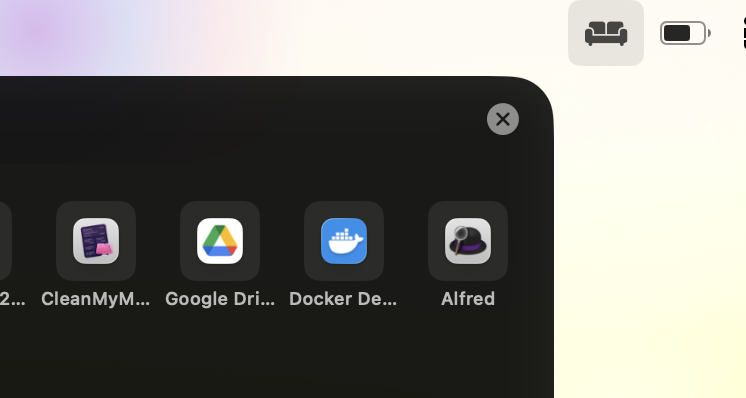
Hold ⌘ and drag any icon across the divider to move it between visible and hidden.
And everything is configured from one clean preferences panel — launch at login, icon style, shortcuts, and your license in one place:
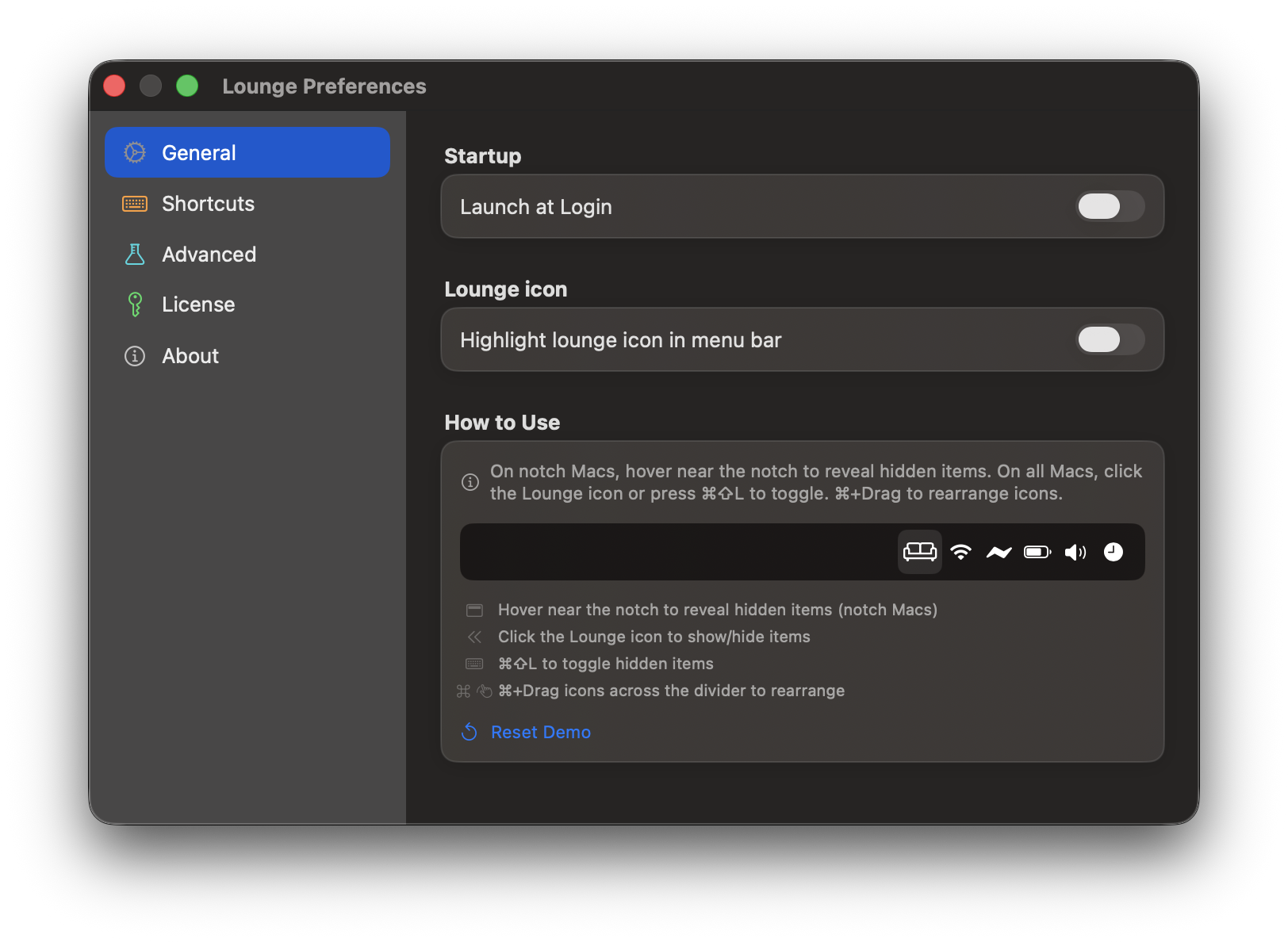
One tidy settings panel — no permission walls to click through first.
What you get, in short:
- Notch-aware panel. Nothing gets stranded behind the camera housing, with clipboard history built in.
- One shortcut. Press ⌘⇧L to toggle hidden items instantly.
- A friendly, low-friction setup. One permission, done — no walls, no stalled loading screens, no recording indicator.
- Works on the latest macOS. Lounge runs on macOS 26 (Tahoe) and later, and hid items cleanly on macOS 27 Golden Gate where the others couldn't.
Want the deeper feature-by-feature comparisons? See Lounge vs Ice and what Lounge is, or the practical declutter guide.
Which should you choose?
- Thaw or Ice are the free, open-source options, and Thaw is admirably honest that screen recording is optional — but in this test neither could actually hide items on macOS 27, and Thaw's layout came up empty.
- Bartender has the deepest rule engine in general, but it wants both screen recording and Accessibility control, gates its Layout editor behind recording, and still didn't hide items on macOS 27 for me.
- Barbee asked for the most — a helper, screen recording, Accessibility, and Automation — and delivered the least, stalling on load.
- Hidden Bar has the right instinct on permissions (no screen recording) but is a bare toggle that also failed to hide items here.
- Lounge is the one that hid items cleanly on macOS 27, with a single permission, no recording indicator, and a modern notch-aware UI.
If you're moving to macOS 27 Golden Gate and you still want to manage your menu bar in a way that's genuinely user-friendly and stable — without the screen-recording prompt, the always-on recording indicator, or the lag I ran into above — make the switch to Lounge. It does the real job with one permission and gets out of your way.
Try Lounge free
Lounge is $3.99/year with a 7-day free trial — no screen recording required. Download Lounge and clean up your menu bar on macOS 27 in a couple of minutes.